Stores Item Ledger
Stores Item Ledger displays the transaction and stock movement details of a selected product. It provides information about incoming and outgoing quantities, associated accounts or parties, document references, and the resulting stock balance.
How to Access
- From the main menu, click Operations.
- Select Inventory.
- Select General.
- Click Stores Item Ledger.

Select Branch, Store, and Product
The Stores Item Ledger allows you to select the required Branch, Store, and Product to view the corresponding stock transactions.
- Branch – Select the branch for which you want to view the product ledger. You can switch between available branches.
- Store – Select the store associated with the product
- Product – Select the product whose stock transactions you want to view. The product dropdown provides a searchable list of available product.

Once a product is selected, its related transaction details are displayed in the table.
Stores Item Ledger Table
The table displayed the stock movement and transaction details for the selected product.
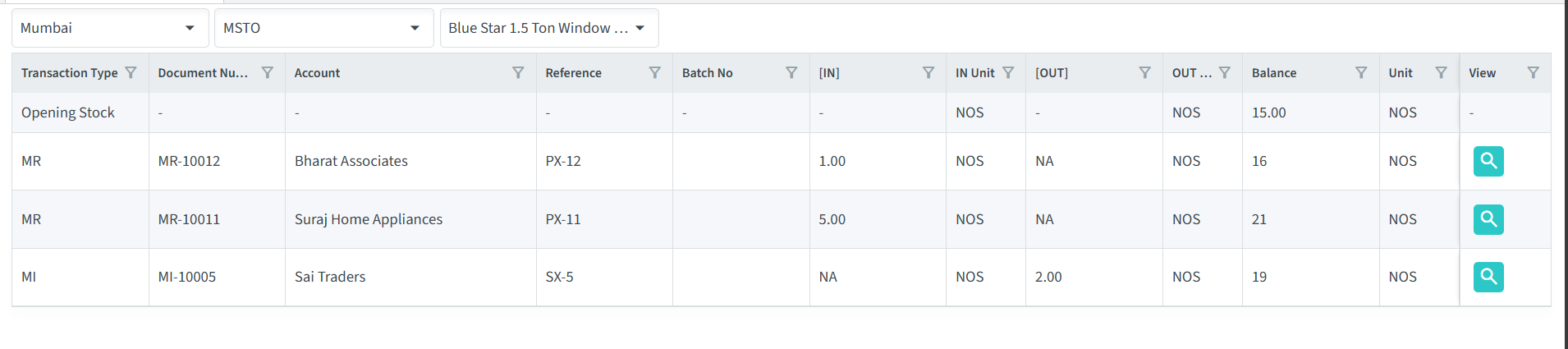
- Transaction Type – Displays the type of transaction associated with product, such as Opening Stock or other inventory transactions.
- Document Number – Displays the document number associated with the transaction.
- Account – Displays the customer, supplier, or other party associated with the transaction.
- Reference – Displays the reference associated with the transaction.
- Batch No – Displays the batch number, when applicable.
- [IN] – Displays the quantity of the product received or added to the selected store.
- IN Unit – Displays the unit of measurement for the incoming quantity.
- [OUT] – Displays the quantity of the product issued or removed from the selected store.
- Balance – Displays the remaining stock balance after the transaction.
- Unit – Displays the unit of measurement for the balance quantity.
- View – Opens the associated record for the transaction.
Viewing transaction Records
The View option is available for transactions that are associated with a specific record.
Click the View icon to open and review the corresponding transaction details.

For example, a product may have incoming transactions from a supplier and outgoing transactions associated with sales or other inventory movements. The ledger displays these transactions along with their document numbers, accounts, quantities, and resulting balance.
Switching Branches
If the organization has multiple branches, you can select a different branch from the Branch dropdown to view the Stores Item Ledger for that branch.
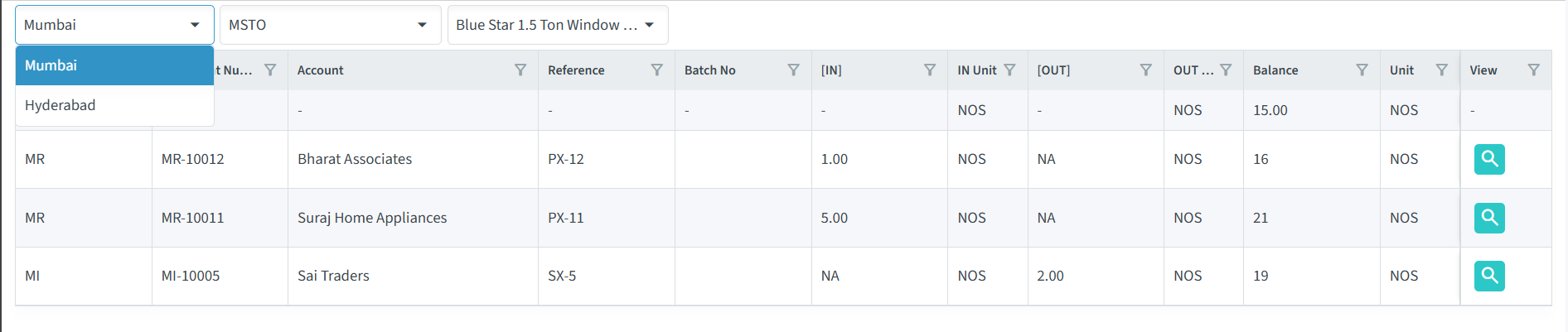
Note: The Displayed ledger detailed depend on the selected Branch, Store, and Products.
Viewing Product Details
Follow these steps to view the transaction and stock details of a product:
- Select Branch
Select the required branch from the Branch dropdown. - Select Store
Select the required Store dropdown. - Select Product
Click the Product dropdown and select the required product from the list. You can also use the search option to find a product. - View Product Details
The ledger displays the transaction details associated with the selected product, including incoming and outgoing quantities, accounts, references, and the current balance. - View Related Records
In the View column, click the View icon for the account/transaction you want to review. This opens the related record, such as the corresponding Purchase Record or Sales Record.
Note: The records displayed depend on the selected Branch, Store, and Product.