General Options
How to Access General Options
- Navigate to Site Admin from the main navigation menu.
- Select Administration.
- Click General Options.
General Options serves as the central control panel for your ERP. It lets administrators set up standard rules, manage reference data, and control document workflows across every department.
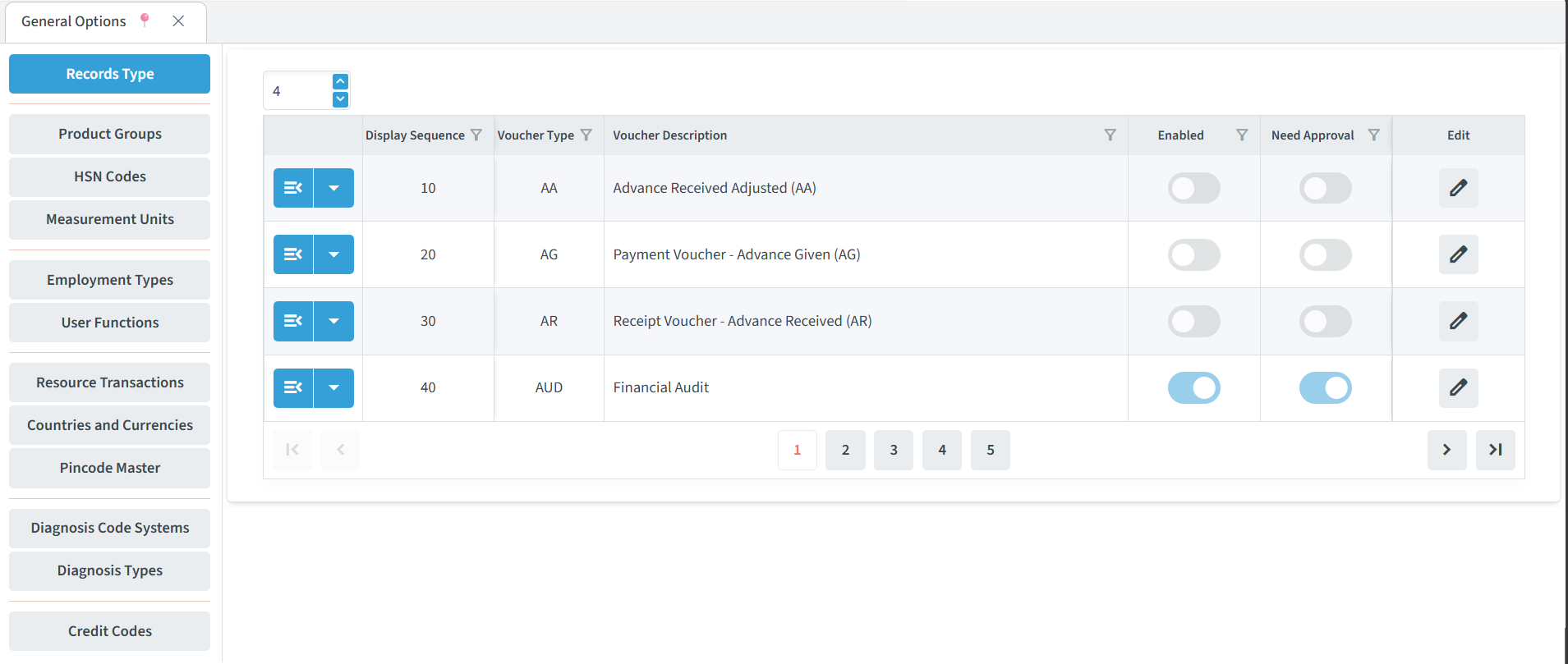
| Menu | Purpose |
|---|---|
| Records Type | Configure the different voucher/document types used in the system. |
| Product Groups | Manage groups used to categorize products. |
| HSN Codes | Manage HSN codes used for products and taxation. |
| Measurement Units | Define units used for measuring products or quantities. |
| Employment Types | Manage employment-type classifications. |
| User Functions | Configure functions or roles associated with users. |
| Resource Transactions | Manage transaction settings related to resources. |
| Countries and Currencies | Maintain available countries and their currencies. |
| Pincode Master | Manage pincode/postal-code reference data. |
| Diagnosis Code Systems | Configure diagnosis coding systems. |
| Diagnosis Types | Manage different diagnosis classifications. |
| Credit Codes | Maintain credit-code reference information. |
Selecting an option from this menu opens its corresponding configuration panel.
Records Type
The Records Type section allows administrators to view and configure the voucher and document types used in the system.
Records Type Table
The Records Type table displays the available voucher types and their configuration status.
- Display sequence: Displays the sequence number used to determine the order of the record type.
- Voucher Type: Displays the code assigned to the voucher type.
- Voucher description: Displays the name or description of the voucher type.
- Enabled: Indicates whether the voucher type is enabled for use.
- Need Approval: Indicates whether the records created under the voucher type require approval.
- Edit: Opens the configuration options for the selected voucher type.
The number field at the top of the table controls the number of records displayed on the page. Pagination controls at the bottom allow you to move between available pages.
Record Type Options
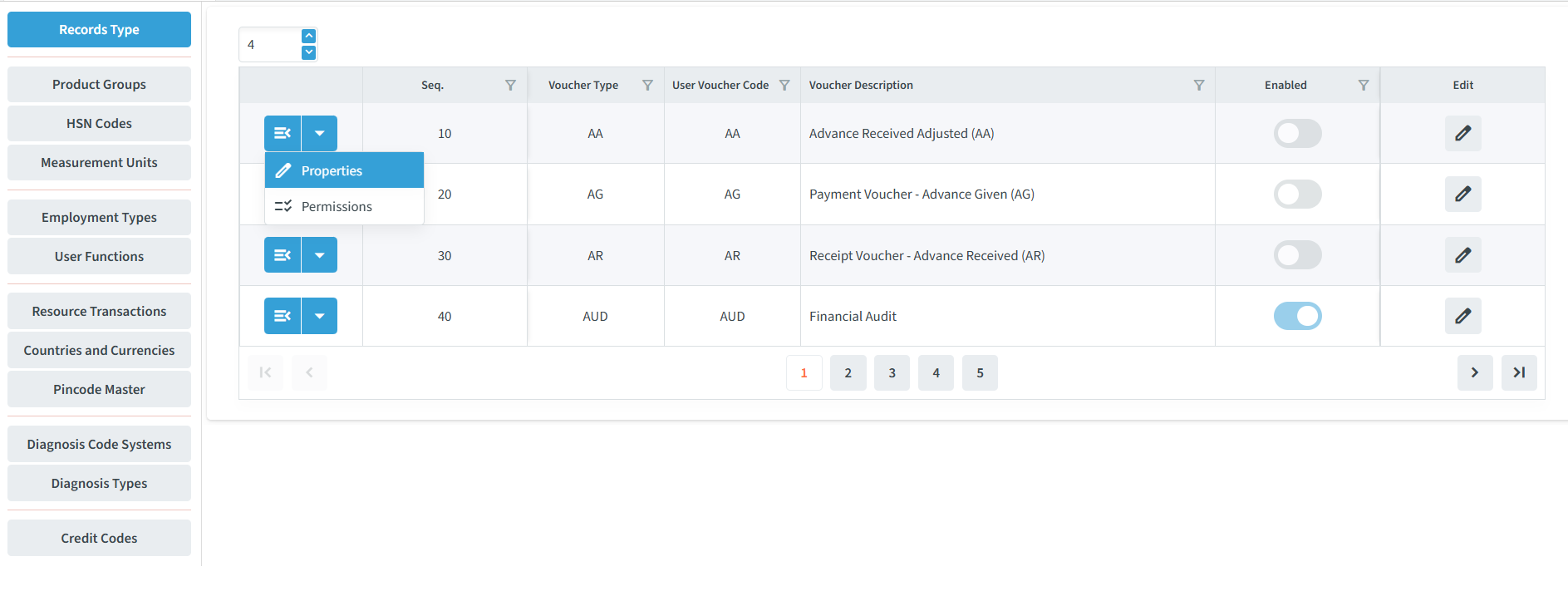
Each record type has an action menu that provides the following options:
- Properties – Opens the configuration settings for the selected voucher type.
- Permissions – Opens the permissions settings for the selected voucher type.
Properties
The Properties option allows administrators to configure the settings of a selected voucher type.
For example, selecting Properties for the Advance Received Adjusted (AA) voucher type opens its configuration screen.
Basic Configuration
The Properties screen contains configuration fields for the selected voucher type, including:
- Display sequence – Specifies the display sequence of the voucher type.
- Voucher Type – Displays the voucher type.
- Voucher Code – Displays the code used for the voucher.
- Tax Voucher – Displays the tax voucher configured associated with the record type.
Record Settings
The Properties screen provides options to control how the selected record type behaves, including:
- Need Approval
- Edit After Approval
- Price List
- Price chang
- Discount List
- Discount Change
These settings can be enabled or configured according to the requirements of the voucher type.
Additional Options
The Properties screen also includes the following options:
- Enable Expiry Data: Enables expiry-date handling for the record type.
- Enable Traceability: Enables traceability-related information for the record type.
- Enable Packing Info: Enables packing information for the record type.
- Previous Record Required: Requires a previous record when creating the current record.
- Enable Agent: Enables agent-related information for the record.
- Enable Dealer: Enables dealer-related information for the record.
- Enable Distributor: Enables distributor-related information for the record.
- Enable Employee: Enables employee-related information for the record.
- Enable Referrer: Enables referrer-related information for the record.
- Restrict To Task: Restricts the record to a task.
Ledger and Accounting Settings
The Properties screen also provides ledger-related configuration options:
- Default Print Format
- IGST Ledger
- CGST Ledger
- SGST Ledger
- Cess Ledger
- Positive Round Off Ledger
- Negative Round Off Ledger
These fields allow the relevant print format and ledger accounts to be selected for the voucher type.
Account and Record Settings
The following fields are also available:
- Copy From Records – Specifies the record type from which information can be copied when creating the current record.
- Ledger Account Type – Specifies the type of account associated with the selected record, such as Customer.
- Previous Record Trading Mode – Specifies the trading mode used when the current record is based on a previous record.
- Customer / Supplier Account Cr Or Dr – Specifies whether the Customer or Supplier account is treated as a Credit or Debit account for record.
- Previous Record Manufacturing Mode –
- Sale / Purchase Account Cr Or Dr
- Tax Amount Cr Or Dr
- Filter Tag
Additional checkboxes include:
- Make Accounts Voucher
- Amount Not Required
- Payment Mandatory
- E-way Bill
- E-Invoice
After making the required changes, click Save to save the properties configuration. Click X to close to close the configuration screen with out saving.
Permissions
The Permissions option allows administrators to control access to the selected record type. Permissions can be assigned to User Types, User Teams, or individual Users.
How to Access Record Permissions
- Go to Administration → General Options.
- Select Records Type.
- Locate the required record type.
- Click the Action dropdown for the record type.
- Select Permissions.
The Permissions window opens for the selected record type. For example, selecting Permissions for Advance Received Adjusted (AA) opens the Advance Received Adjusted (AA) : Permissions screen.
Permission Types
The Permissions screen provides three options for assigning record permissions:
- User Types
- User Teams
- Users
These options allow permissions to be assigned based on the user’s type, team, or individual user.

User Types
The User Types option allows permissions to be assigned to users based on their configured User Type.
The permission table provides the following columns:
- User Type – Displays the user type to which the permissions apply.
- User Series Codes – Displays the series codes associated with the user type.
- View – Allows the user type to view records of the selected record type.
- Add – Allows the user type to create new records.
- Edit – Allows the user type to modify existing records.
- Approve – Allows the user type to approve records.
- Print – Allows the user type to print records.
- Advance Print – Provides access to advanced print options.
- Export – Allows the user type to export record data.
- Analysis – Provides access to analysis options for the record type.
- Edit – Allows the permission entry to be modified.
Click the + button to add a new User Type permission entry.
User Teams
The User Teams option allows permissions to be assigned based on the team to which users belong.
The interface follows the same permission structure as User Types, with permissions available for:
- View
- Add
- Edit
- Approve
- Advance Print
- Export
- Analysis
The permission table also includes User Series Codes and an Edit option for managing the permission entry.
Click the + button to add a new User Team permission entry.