Welcome to our Support Center
Business Process Priority
Business Process Priority indicates the level of importance or urgency assigned to a business process.
It allows users to define different priority levels for business processes and helps distinguish between processes that can be handled normally and those that require greater attention.
Existing Priority Levels
- Normal: Regular business process that can be handled according to the usual workflow.
- High: Process that requires attention sooner than normal.
- Critical: Process requiring immediate or very high attention.
Note: These are examples; the actual meaning of each priority can depend on how your organization uses the priorities.
Navigation
- Navigate to the main menu and click on Administration.
- Click on Business Process.
- Select Priority.

How to Create a Business Process Priority
Follow the steps below to create a new priority level for business processes.
- Click the + button
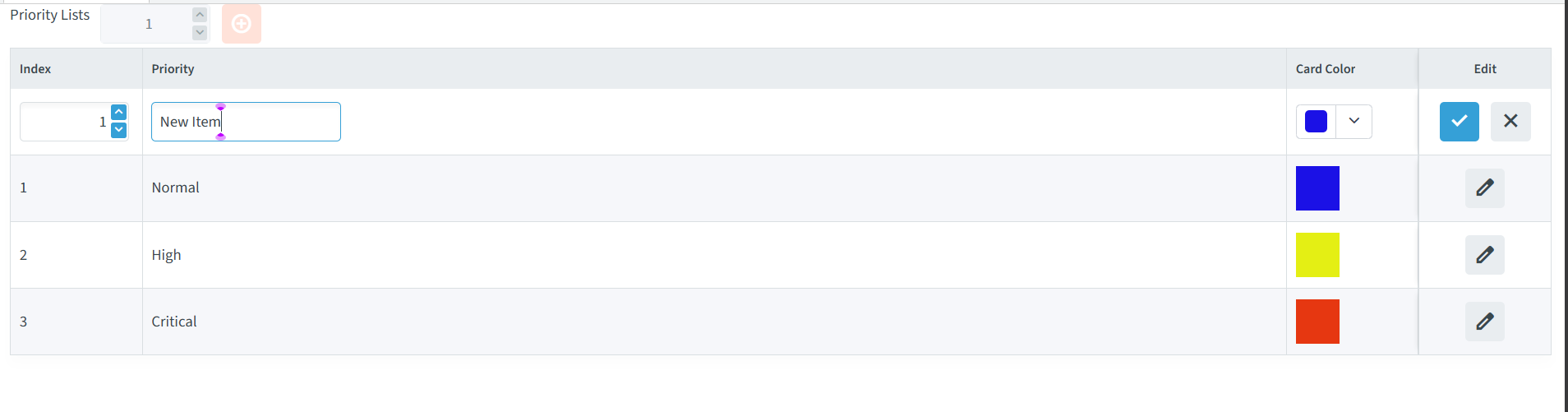
- Click the + button at the top of the Priority Lists screen.
- A new row appears.

- Enter the Priority name
- In the Priority field, enter the name of the priority.
- For example:
- High or Critical.
- Set the Index
- Enter an Index number to determine the position of the priority in the list.

- Select the Card Color
- Use the Card Color selector to choose the color associated with priority.
- For example:
- Normal -> Blue
- High -> Yellow
- Critical -> Red
- The color provides a visual indication of priority when the process is displayed as a card.

- Save the Priority
- Click on the ✓ (checkmark) button in the Edit column to save the new priority.
- The new priority will then appear in the Priority Lists table.

How to Edit a Priority
- Open the Priority Lists.
- Locate the Priority item you want to modify.
- Click the Edit icon.
- Update the required details.
- Click on ✓ button to save the changes.

