Price List
Product Table
The product list displays the following columns:
| Field | Description |
|---|---|
| Products | Displays the products included in the price list. |
| List Price | Displays the price assigned to each product. |
| Unit | Displays the measurement unit of the product. |
| Edit | Allows the product entry to be modified. |
| Delete | Removes the product from the price list. |
A Price List is used to define and manage pricing information for products or services.
Price lists can be configured for Sales or Purchase transactions.
How to Access
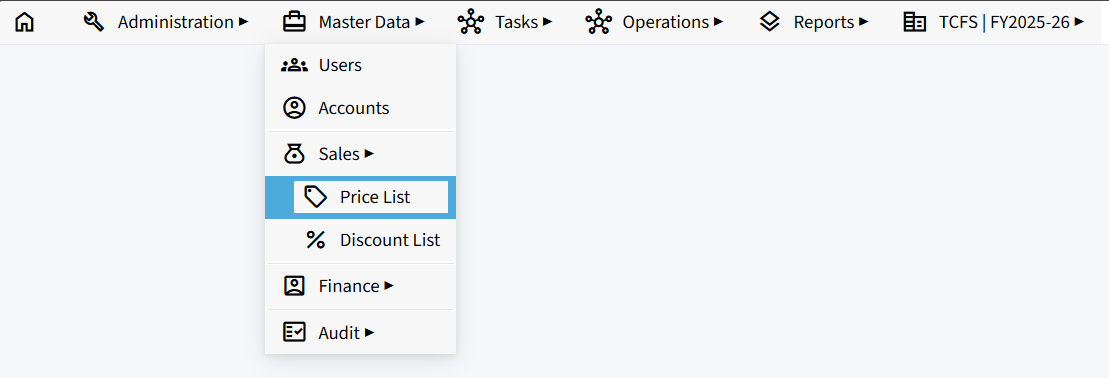
- From the main menu, click Master Data.
- Select Sales.
- Click Price List.
Price List Overview
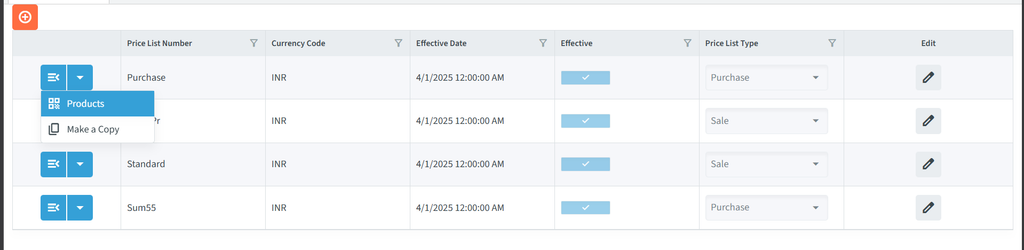
The Price List page displays the price lists configured in the system. Each Price list shows its currency, effective data, status, and price list type.
Price List Fields
- Price List Number: Displays the name or identifier of the price list.
- Currency Code: Displays the currency associated with the price list, such as INR.
- Effective Data: Displays the data from which the price list is effective.
- Effective: Indicates whether the price list is currently effective.
- Price List Type: Indicates whether the price list is used for Purchase or Sales transactions.
- Edit: Allows the price list to be opened for editing.
Creating a New Price List
Click the + button at the top-left of the Price List page. A new row is added to the list.

Enter the following details:
| Field | Description |
|---|---|
| Price List Number | Enter a name or identifier for the price list. |
| Currency Code | Select the currency for the price list, such as INR – Indian Rupee. |
| Effective Date | Select the date from which the price list should be effective. |
| Effective | Enable this option to make the price list effective. |
| Price List Type | Select Sale or Purchase according to the intended use of the price list. |
After entering the required details:
- Click the ✓ button to save the price list.
- Click the × button to cancel the entry.
Managing Price List Options
Each price list has a dropdown menu with additional options.
Click the dropdown arrow next to a price list to view the available options:
- Products – Opens the products associated with the selected price list.
- Make a Copy – Creates a copy of the selected price list.
Products
Click Products from the price list dropdown to open the Products for Sale or Products for Purchase page, depending on the Price List Type.
This page displays the products included in the selected price list and their associated pricing information.
Available Options
- Add – Adds a new product to the price list.
- Auto Generate – Provides an option to automatically generate product entries, where available.
- Import from Excel – Allows product information to be imported from an Excel file.
- Row Edit – Enables editing of product information directly within the table.
- Quantity Edit – Enables editing of quantity-related information.
- Excel – Provides an Excel-related option for working with the product list.
- Edit – Opens an individual product entry for editing.
- Delete – Removes a product from the price list
Product Table
The product list displays the following columns:
| Field | Description |
|---|---|
| Products | Displays the products included in the price list. |
| List Price | Displays the price assigned to each product. |
| Unit | Displays the measurement unit of the product. |
| Edit | Allows the product entry to be modified. |
| Delete | Removes the product from the price list. |

Adding a Product
- Click Add.
- Enter the required product details.
- Enter the applicable price information.
- Save the product entry.
How To Enable
To enable the Price List menu for a user, follow these steps:
1. Enable Company Setting
- Go to Administration → My Company.
- Open Company Settings.
- Enable Price and Discount Lists.
- Save the changes.
2. Enable Role Permission
- Go to Master Data → Users.
- Open the required user.
- Go to Role and Permissions.
- Enable Manage Products.
- Save the changes.
3. Enable Record Permission
- In the same user’s Permissions, go to Records.
- Find the Sales Invoice record.
- Enable the View permission.
- Save the changes.