Creating New Purchase Record
Purchase Record
A Purchase Record is used to record and manage purchases made from suppliers. It captures details such as the supplier, purchase date, products or services, quantities, prices, taxes, and other relevant purchase information.
Purchase Records are available in two voucher types:
- Purchase Order (PO) – Used to record an order placed with a supplier for goods or services.

- Purchase Invoice (PI) – Used to record an invoice received from a supplier for purchased goods or services.
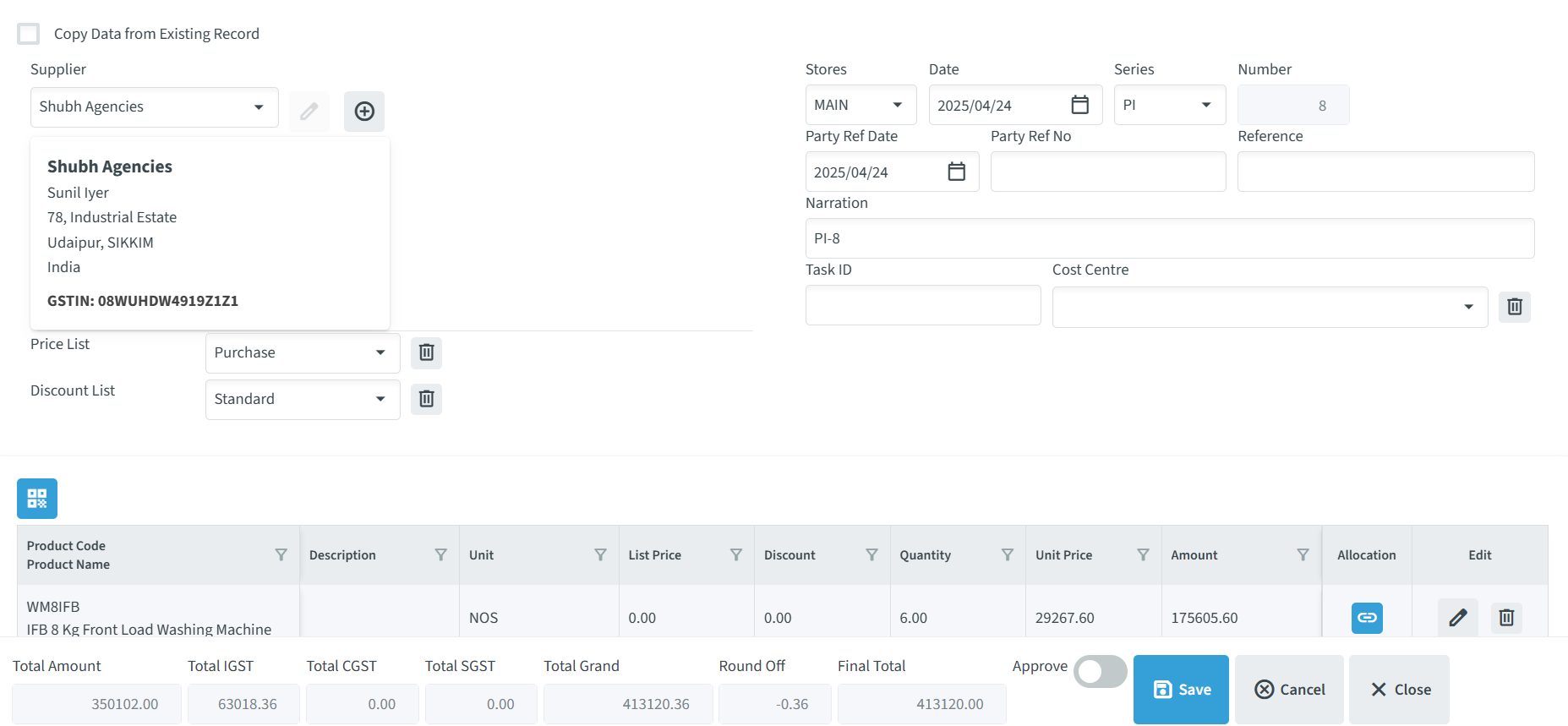
The fields and controls available when creating a purchase Record vary slightly depending on the selected voucher type.
Difference Between Purchase Order and Purchase Invoice
The Purchase Order and Purchase Invoice forms contains the same general fields and controls. However, some fields are specific to each voucher type.
| Field | Purchase Order (PO) | Purchase Invoice (PI) |
| Supplier | Available | Available |
| Ship To | Available | Not Available |
| Price List | Not available | Available |
| Discount List | Not Available | Available |
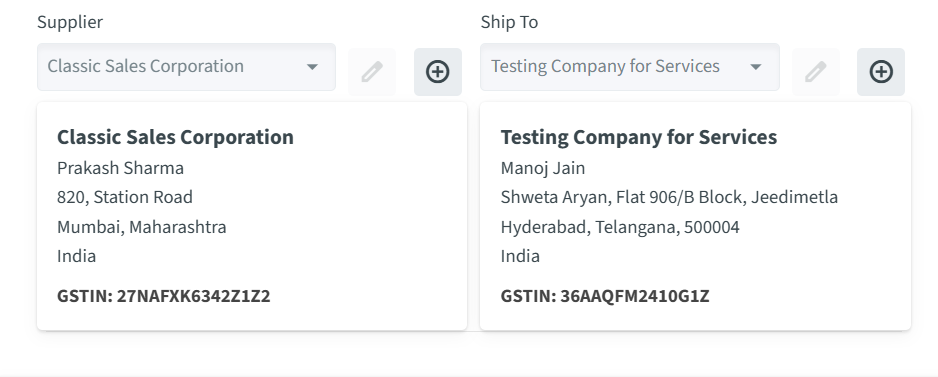
Purchase Order Form

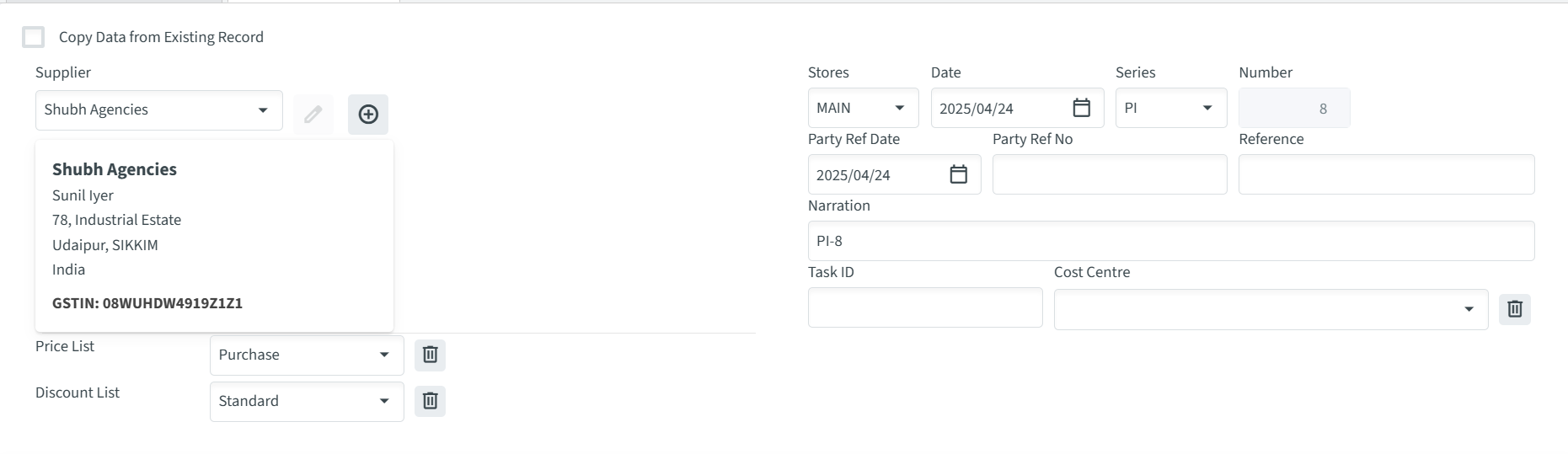
Purchase Invoice Form
Note: The Ship To field is available only for Purchase Orders, while the Price List and Discount List fields are available only for Purchase Invoices. The remaining sections and controls are the same for both forms.
How to Create a Purchase Record
- Go to Operations -> Purchase Records.
- Select the Branch.
- Select the required Voucher type.
- Purchase Invoice (PI)
- Purchase Order (PO)
- Click New Record.
- Enter the Date and Party Ref Date.
- Select the Supplier. For a Purchase Order (PO), also select the Ship To location.
- Enter the Task ID, Remarks, Cost Centre, and Reference, if applicable.
- Click the blue product button to open the product entry section.
- Select a Product or Service from the dropdown.
- Enter the Quantity, Unit Price, and Description.
- Click Add to add the product or service.
- To modify an added product or service, click the Edit icon.
- Click Save to save the purchase record.


Additional Information
The Task ID, Remarks, Cost centre, and Reference fields are optional and can be entered when applicable. The Ship To field is available only for Purchase Orders (PO) and is not available for Purchase Invoices (PI).
If Approve is enabled before saving, the record is saved under Approved Records. Otherwise, it is saved under Records Pending Approval.
Record Details
- Copy Data from Existing record – Copies the information from an existing record.
- Supplier – Select the Supplier associated with the purchase.
- Ship To – Select the delivery location (Available only for Purchase Orders).
- Stores – Select the store associated with the purchase. Default – Main.
- Date – Select the Purchase record date.
- Series – Shows the voucher series.
- Number – Displays the Unique Voucher number.
- Party Ref Date – Enter the supplier’s reference date.
- Party Ref No – Enter the Supplier’s reference number.
- Reference – Enter Reference.
- Narration/Remarks – Enter the additional information about the purchase.
- Task ID – Enter the related Task ID, if applicable.
- Cost Center – Select the applicable Cost Center.
- Price List – Select the applicable Price List (Available only for Purchase Invoice).
- Discount List – Select the applicable Discount List (Available only for Purchase Invoice).
Purchase Order

Purchase Invoice
Product Details
- Add Product – Enable the Product dropdown.
- Product Code / Product Name – Identifies the selected product.
- Description – Displays the Product description.
- Unit – Displays the unit of measurement.
- List Price – Displays the product’s list price.
- Discount – Displays the applicable discount.
- Quantity – Enter the quantity being purchased.
- INR Price – Displays the applicable price in Indian currency.
- Amount – Displays the calculated amount.
- Allocation – Displays the allocation information, which you can link.
- Edit – Allows the product entry list to be modified.

Purchase Totals
The Purchase Totals section displays the amounts calculated from the products, quantities, prices, discounts, and applicable taxes entered in the purchased record.
- Total Amount – Displays the total value of the products before taxes.
- Total IGST – Displays the total Integrated Goods and Services Tax (IGST) applicable to the purchase.
- Total CGST – Displays the total Central Goods and Services Tax (CGST) applicable to the purchase.
- Total SGST – Displays the total State Goods and Services Tax (SGST) applicable to the purchase.
- Total Grand – Displays the total amount including the applicable taxes.
- Round Off – Displays the rounding adjustment applied to the calculated total.
- Final Total – Displays the final amount after taxes and rounding.
The total are calculated automatically by the system based on the details entered in the purchased record.
