Welcome to our Support Center
Accounts
Navigation
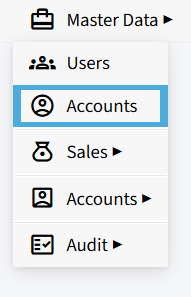
- Click Master Data from the top navigation menu.
- Select Accounts under Users.
How To Enable
1. Enable Company Setting
- Go to Administration → My Company.
- Open Company Settings.
- Enable Finance.
- Save the changes.
2. Enable Role Permission
- Go to Master Data → Users.
- Open the required user.
- Go to Role and Permissions.
- Enable Manage Finance.
- Save the changes.
Accounts
- The Accounts module is used to maintain the master records of organizations and entities that interact with the business.
- An account can represent different types of entities, such as:
- Customer
- Employee
- Referrer
- Supplier
- Account details are used throughout the application for various business activities, including ticket creation, project assignment, invoicing, purchase orders, and other transactions.

New Account
To create a new account in the system, follow these steps:
- Click the “+” button to open the New Account form.
- Select the Account Type from the dropdown, such as Employee, Customer, Dealer, or Distributor.
- Enter the required account details.
- Complete the relevant sections of the form with the required information.
- Click Save to create the account.

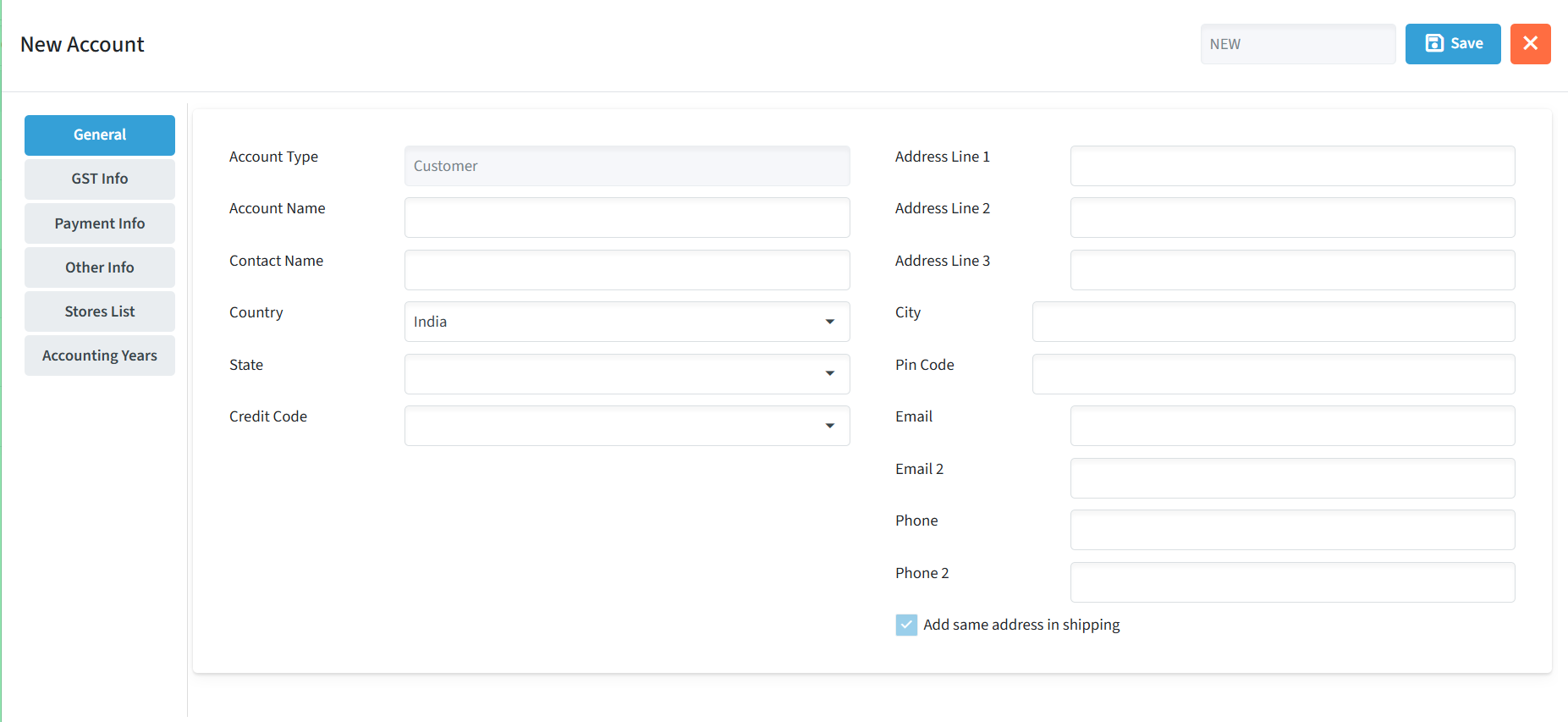
The New Account form is divided into the following sections, where you can enter and manage the relevant account information:
- General – Enter the basic account and contact details, including Account Type, Account Name, Contact Name, Country, State, Credit Code, Address, City, Pin Code, Email, and Phone Number.
You can also add a shipping address for the account. If the shipping address is the same as the account address, select Add same address in shipping.
- GST Info – Enter the account’s GST and tax-related details, such as GST information and other applicable tax details.
- Payment Info – Enter the account’s payment-related details, including payment methods and applicable payment terms.
- Other Info – Enter any additional information related to the account that is not covered under the other sections.
- Stores List – View and manage the stores associated with the account, where applicable.
- Accounting Years – Manage the accounting-year-related details associated with the account.
Save – Click Save at the top-right to create the account or save changes made to an existing account.
Close (X) – Click the X button to close the account form without continuing.
View or Edit an Account
- The Accounts List displays all the accounts available in the system.
- Use the available search and filter options to locate a specific account.
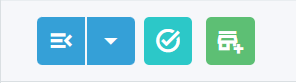
- Click the dropdown for the required account and select View/Edit.
- The account details can be viewed or modified as required.
- Update the required information and click Save to apply the changes.

Quick Access
- Click the ✓ icon next to an account to directly access the Tasks and Tickets associated with that account.
- Click the Green shop icon next to an account to directly access the Records associated with that account.