Permissions
The Permissions modal controls functional access rights and record-level privileges for a specific user. It ensures team members have exact operational access aligned with their responsibilities.
Role and Permissions
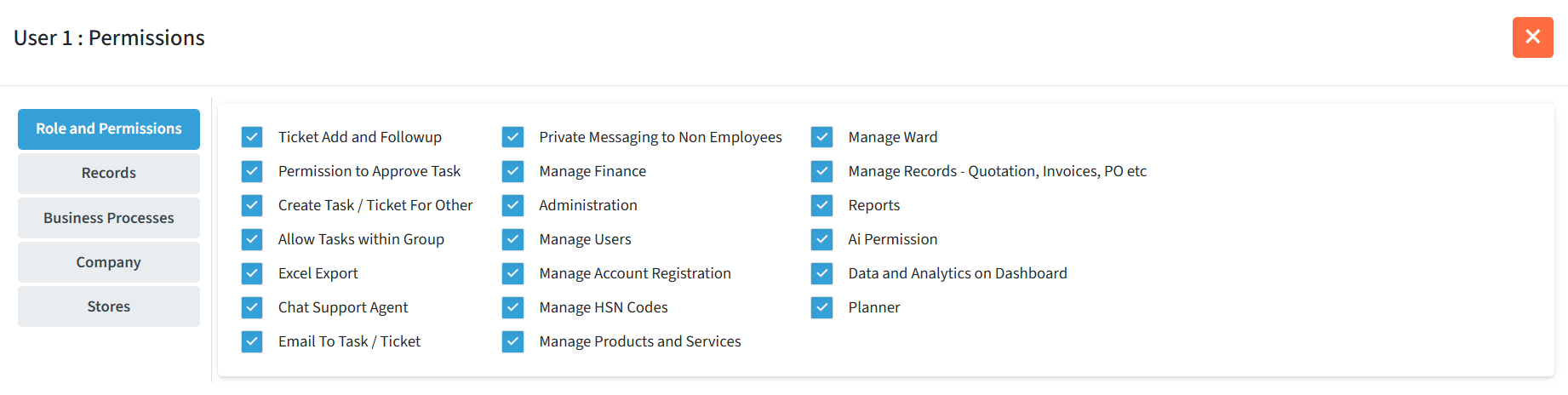
This tab features checkbox controls to grant or restrict specific feature capabilities across the application:
- Ticket Add and Follow-up: Allows the user to create new tickets and perform follow-up actions on active tasks.
- Permission to Approve Task: Enables the user to grant approvals for tasks at assigned workflow stages.
- Create Task / Ticket For Other: Authorizes the user to generate and delegate tasks or tickets on behalf of other team members.
- Allow Tasks within Group: Grants access to view and manage tasks assigned to their overall team or group.
- Excel Export: Enables the user to export grid data, lists, and reports into Excel format.
- Chat Support Agent: Designates the user as a live support representative within the system.
- Email To Task / Ticket: Grants permission to convert incoming emails directly into actionable tickets or tasks.
- Private Messaging to Non Employees: Allows the user to send private messages to external contacts (e.g., clients, suppliers).
- Manage Finance: Unlocks administrative access to financial records, vouchers, and accounting tools.
Records
The Records sub-tab provides granular access control for all document and voucher types available in the system (e.g., Financial Audit, Contra, Delivery Challan Journal).
Administrators can customize access per record type across the following columns:
- Record Type & Voucher Description: Displays the standard system code (e.g., AUD, CV, DCJ) and name of the record.
- User Series: Specifies the voucher numbering series assigned to the user.
- Additional Permissions :
- View: Grants permission to open and read records.
- Add: Allows creation of new records under this voucher type.
- Edit: Permits updates or modifications to existing records.
- Approve: Enables the authority to review and approve submitted vouchers.
- Print: Allows direct printing of records.
- Advance Print: Provides multiple print format selection options when printing records.
- Export: Enables exporting record data into external files.
- Analysis: Grants access to reporting, metrics, and analytics for that record type.
- Edit Icon: Click the pencil icon on the far right to edit or update the specific permissions matrix for that record row.

Business Processes
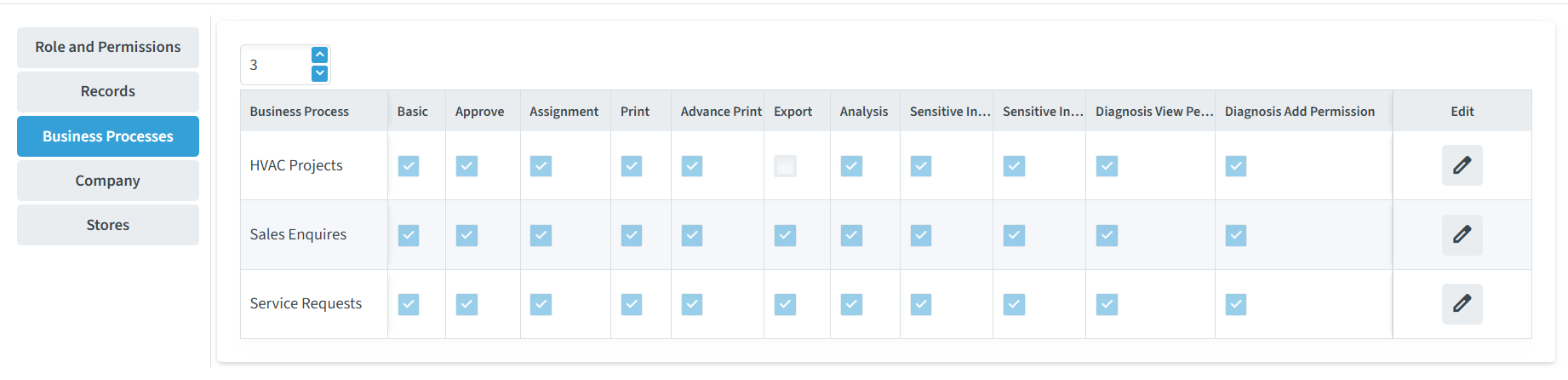
The Business Processes sub-tab allows administrators to set process-level permissions for each user. This ensures users can only access, modify, or manage workflows relevant to their role while protecting sensitive operational data.
Administrators can configure granular permissions across all active processes (e.g., HVAC Projects, Sales Enquiries, Service Requests):
- Process Access & Workflow Permissions:
- Basic: Grants standard view and basic interaction access to the business process.
- Approve: Enables authorization to approve tasks or workflow stages within the process.
- Assignment: Allows assigning or reassigning tickets and tasks to team members.
- Printing & Data Export Controls:
- Print: Permits standard printing of process views and ticket details.
- Advance Print: Unlocks advanced print options and customized document templates.
- Export: Enables exporting process data to external files.
- Analysis: Grants access to process reporting, performance metrics, and analytics.
- Sensitive & Diagnostic Data Controls:
- Sensitive Info View / Add Permission: Controls whether the user can read or submit encrypted confidential notes for the process.
- Diagnosis View / Add Permission: Controls whether the user can view or record diagnostic findings, codes, and issue details.
- Editing Permissions: Click the Edit (pencil) icon next to a specific process row to modify its permission checks.
- Automatic Save: Changes take effect immediately upon checking or unchecking a box—there is no separate save button required for this matrix.
Company
The Company sub-tab defines which company entity the user is associated with and specifies their accounting year access privileges.
This table provides the following configuration options:
- Company Name: Displays the company entity assigned to the user (e.g., Testing Company for Services).
- Accounting Year Access Permissions:
- Allow Active Ac Year: Grants access to view and create entries within the ongoing financial/accounting year.
- Allow Closed Ac Year: Permits access to historical financial records from finalized or closed accounting years.
- Allow Under Audit Ac Year: Enables access to accounting records for years currently undergoing financial audits.
- Edit Icon: Click the pencil icon on the right to toggle or update company permissions for that specific entity.

Stores
The Stores sub-tab defines store-level inventory access and transaction privileges for the user within specific company branches.
This table allows administrators to configure the following store permissions:
- Company & Stores Code: Displays the linked company name (e.g., Testing Company for Services) and specific store location code (e.g., MAIN).
- Inventory & Action Permissions:
- View: Grants access to view store inventory levels, stock lists, and location details.
- Add: Permits creating new inventory entries or logging new items.
- Issue: Authorizes issuing stock or materials from the store location.
- Edit: Allows updating or modifying existing store records and stock entries.
- Approve: Grants approval authority for store transfers, issue requisitions, or stock adjustments.
- Print / Advance Print: Enables standard or advanced customized printing of store documents and issue slips.
- Export: Allows exporting store inventory lists and reports to external files.
- Analysis: Grants access to inventory performance metrics, stock usage reports, and analytics.
- Edit Icon (✏️): Click the pencil icon on the right to toggle or edit the permissions for a specific store location.
