Welcome to our Support Center
-
Operations Management
-
Global Settings
-
Master Data
-
Administration
-
Task Management
-
Reports And Analysis
-
ProcessGrid Software Overview
< All Topics
Print
Account Ledger
Posted
Updated
ByLakshmi Kammara
Navigation
- Click Operations from the top navigation menu.
- Select Accounts.
- Click Account Ledger.
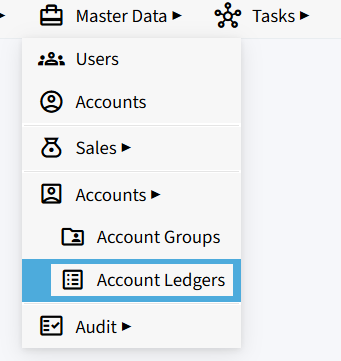
Account Ledger
- The Account Ledger screen displays all the account ledgers created in the company.
- Use the Filter Account Name field to search for a specific account ledger.
- Each account ledger displays:
- Name – Name of the account ledger.
- Account Group – The account group assigned to the ledger.
- Edit – Allows you to modify the account ledger details.

Create a New Account Ledger
- Click the + (orange) button to create a new account ledger.
- Enter the Account Ledger Name.
- Select the required Account Group from the dropdown.
- Click the ✓ button to save the account ledger.
- Click the ✕ button to cancel the entry.

Import Account Ledgers from Excel
- Click the Excel icon to import account ledgers in bulk.
- Use the Excel import option to upload the account ledger details instead of creating each ledger individually.
Table of Contents