Following Up on a Ticket
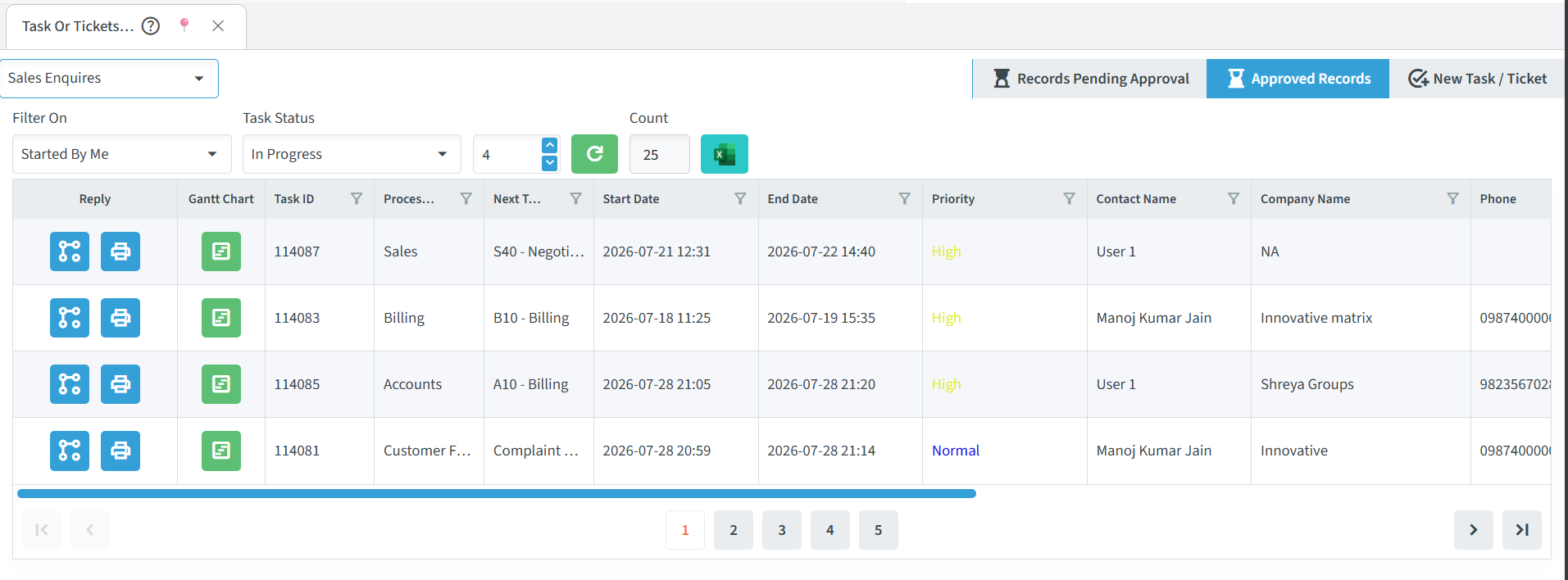
From the “Approved Records” list, click the Reply button on any ticket to open its follow-up page. This screen provides the complete history and allows you to add updates or close the ticket.
The screen is divided into three tabs:
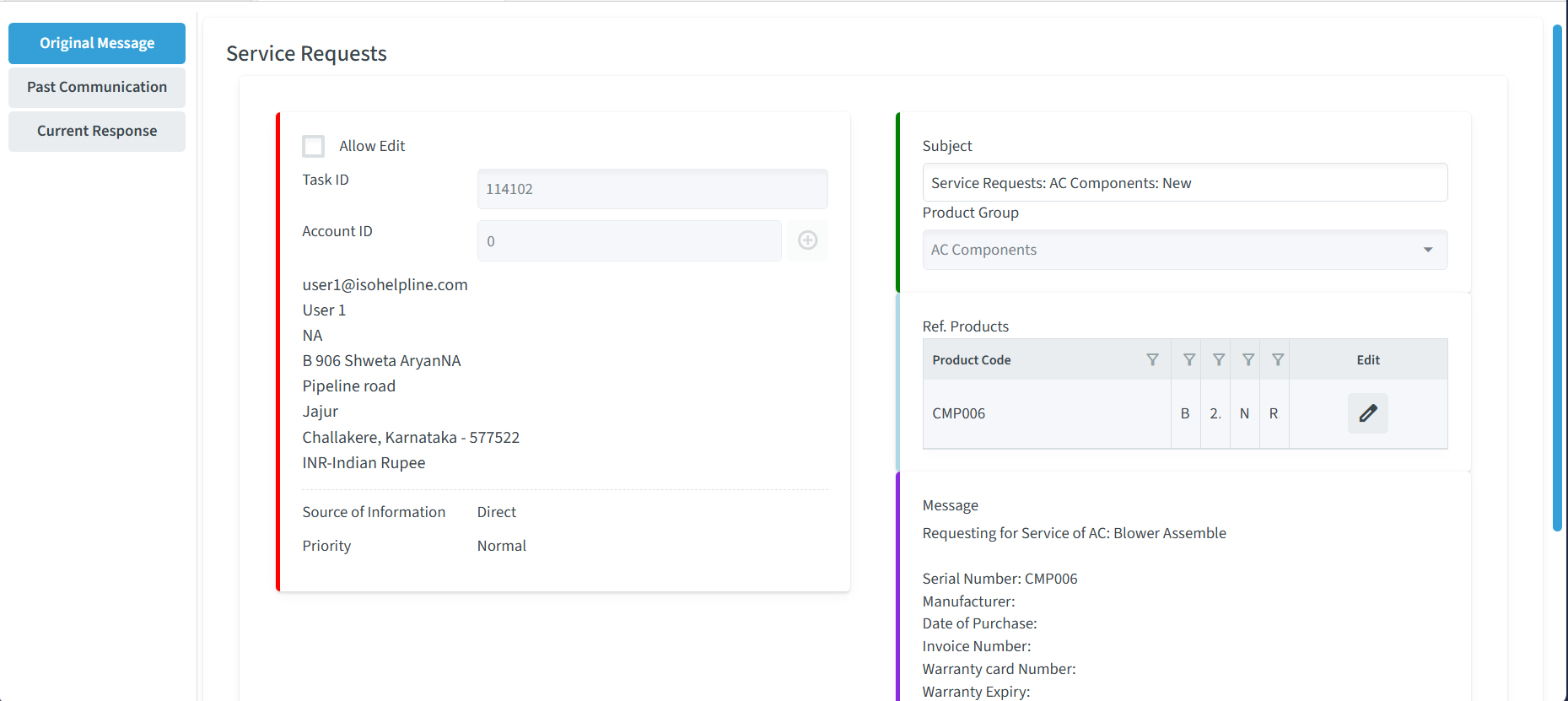
Original Message
Shows the initial problem or request. You can click “Allow Edit” to update ticket details or change the selected product.
Past Communication
The Past Communication tab tracks the full history and activity log for a ticket. It groups past actions into structured sub-tabs so you can easily review previous updates, communication, and generated documents:
Show Communication
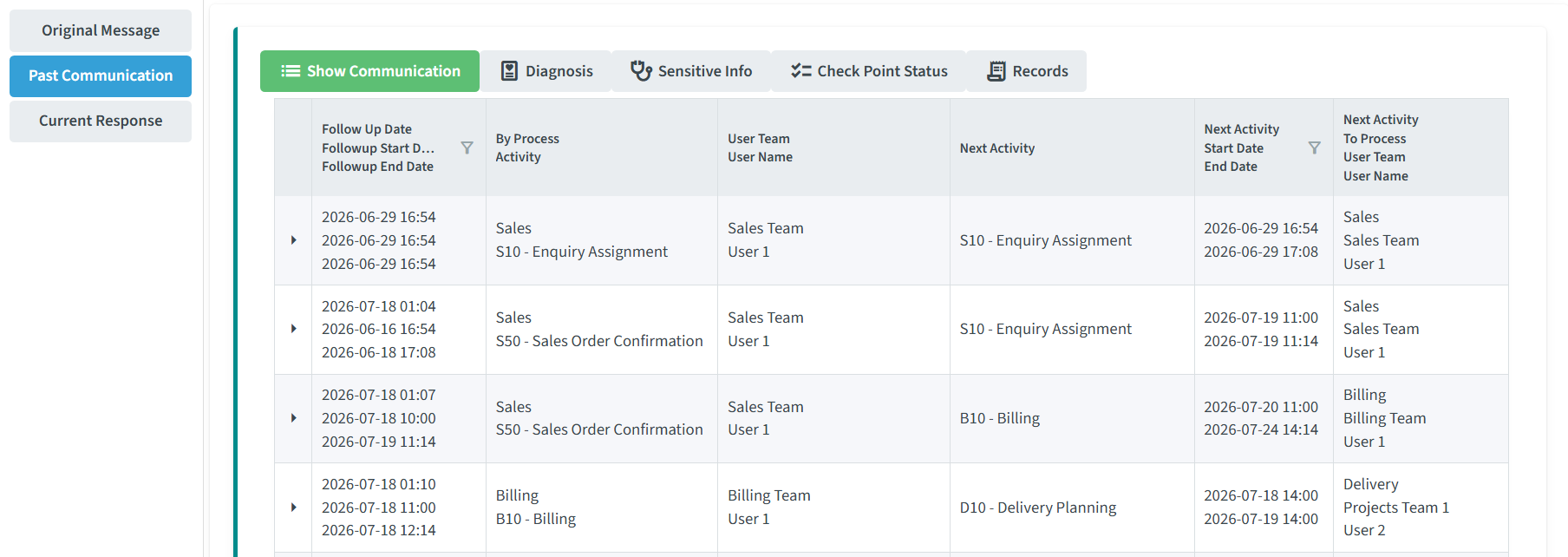
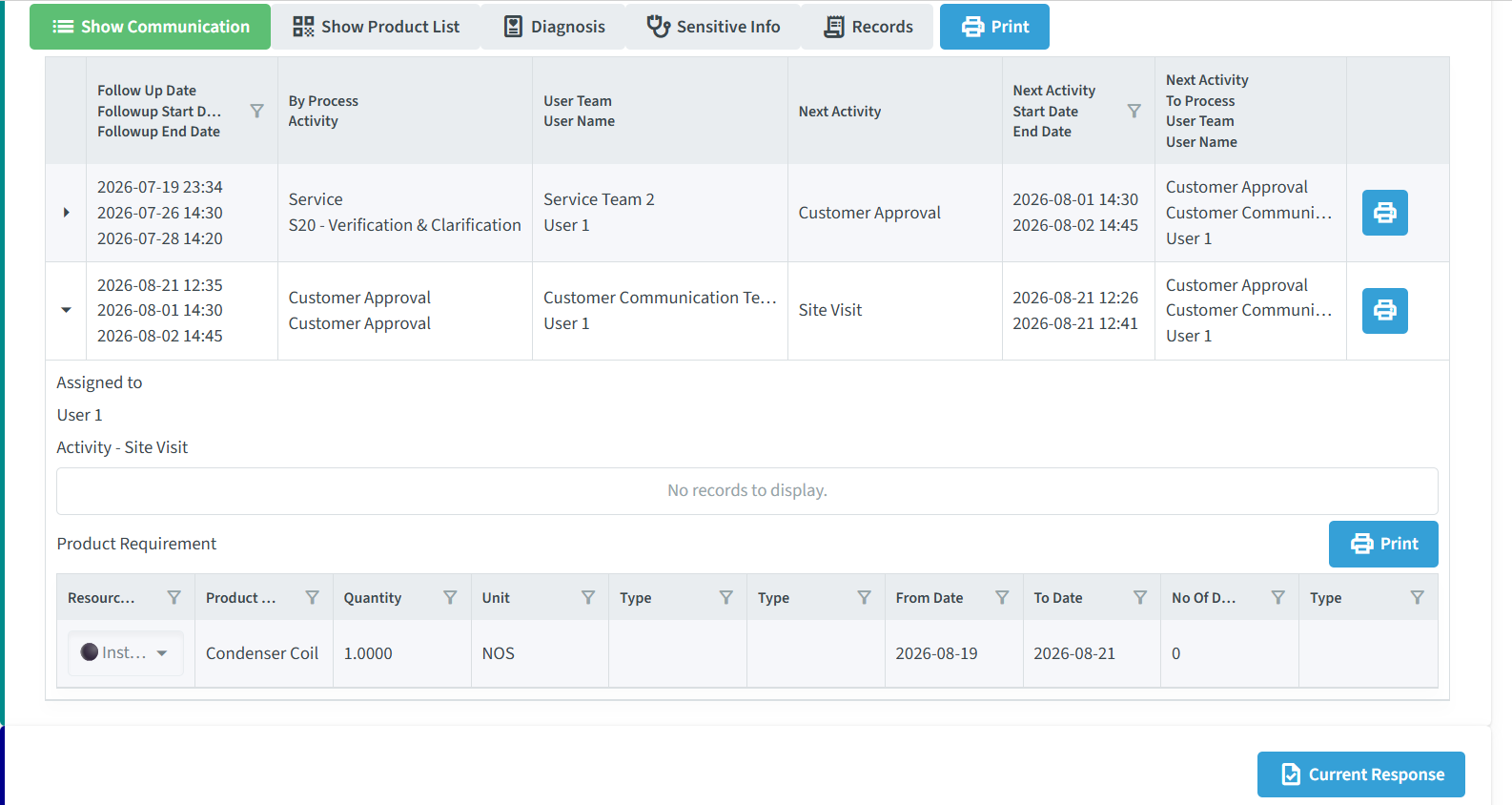
The Show Communication sub-tab logs every stage transition and message exchange. The details and options displayed here automatically adapt based on your selected Business Process:
- Stage Tracking: Displays the Followup Dates (Start/End), By Process Activity, User Team, and assigned User Name for each historical stage.
- Next Stage Routing: Shows the scheduled Next Activity, its Start/End Dates, and the target team/user.
- Expanded Stage Details: Click the arrow icon next to any row to reveal attached messages, files, or notes for that specific step.
- Process-Specific Features & Printing: Depending on the selected process (e.g., Service Requests or Sales Requests), additional historical controls will appear:
- Print All Stages: Click the top Print button to generate a complete summary sheet of all historical process steps.
- Print Individual Stage: Click the print icon on a specific row to print details for that single activity stage.
- Product Requirements & Usage: Displays itemized historical product data, including product names, quantities, units, and resource transaction dates tied to the activity.
Diagnosis
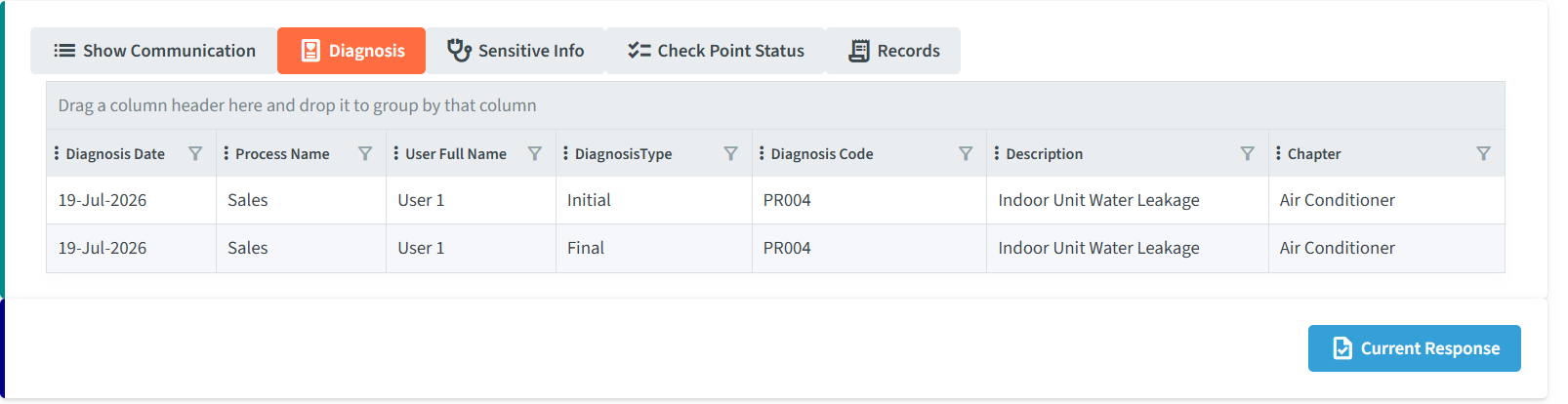
The Diagnosis provides a breakdown of diagnostic entries linked to the ticket, allowing you to review detailed issue assessments recorded across the workflow stages.
This table includes the following information:
- Diagnosis Date: The timestamp when the diagnostic entry was recorded.
- Process Name: The specific business process under which the diagnosis was added.
- User Full Name: The name of the team member or technician who performed the diagnosis.
- Diagnosis Type & Code: Categorized classification and system code assigned to the identified issue.
- Description: Detailed explanations and notes regarding the diagnostic findings.
- Chapter: Standardized reference or categorization code used for regulatory or system grouping.
- Custom Grouping: Drag any column header to the top bar to dynamically group records by that specific field (e.g., group by Diagnosis Type or User Full Name).
Sensitive Info
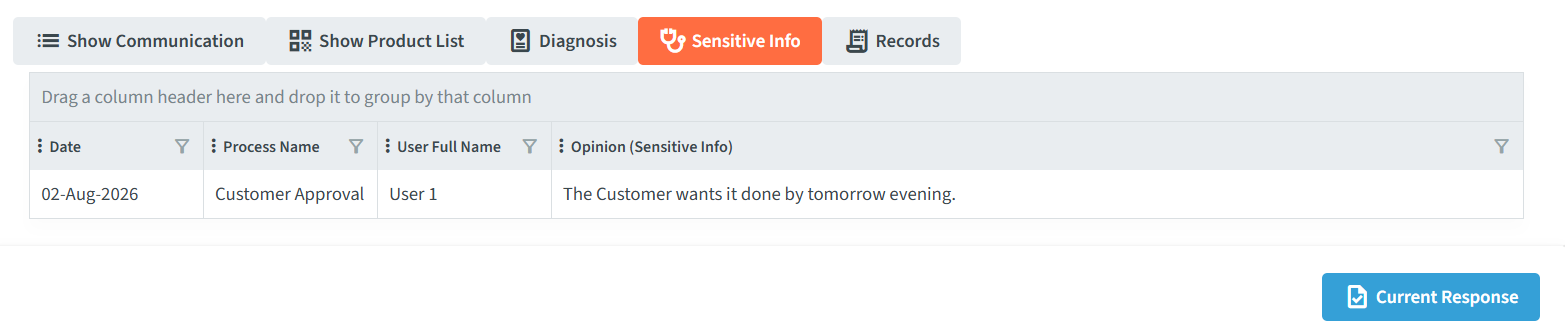
The Sensitive Info stores confidential notes and opinions recorded during the workflow. All entries in this section are encrypted, ensuring data privacy so that only authorized users with explicit viewing permissions can access the details.
This table displays the following fields:
- Date: The timestamp when the sensitive note was created.
- Process Name: The specific workflow stage during which the entry was logged.
- User Full Name: The name of the authorized team member who submitted the information.
- Opinion (Sensitive Info): The encrypted text containing confidential details or internal observations.
- Custom Grouping: Drag any column header to the top bar to group entries dynamically by fields like Process Name or User Full Name.
Records
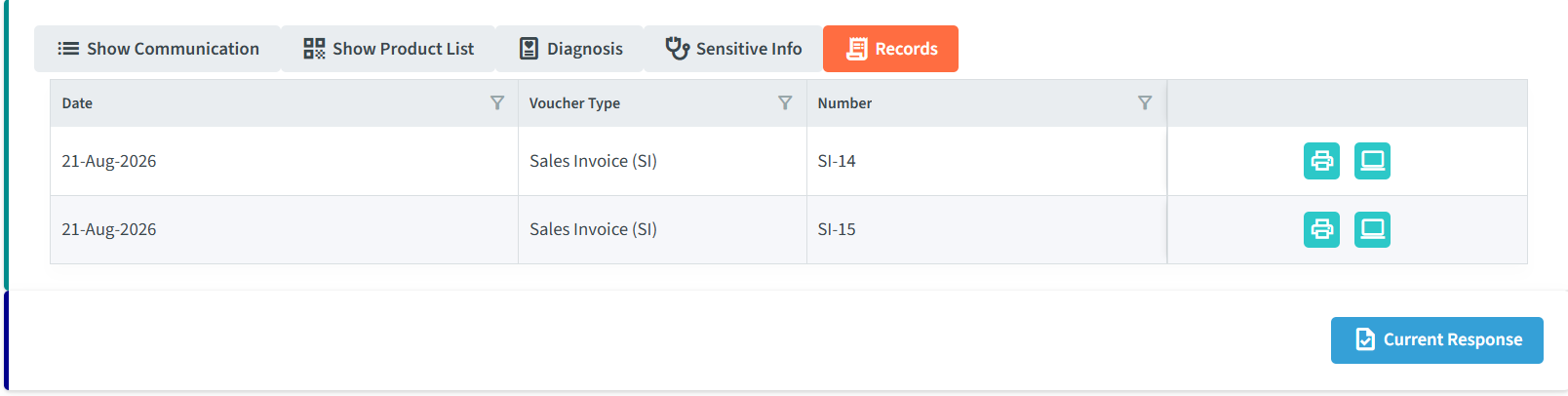
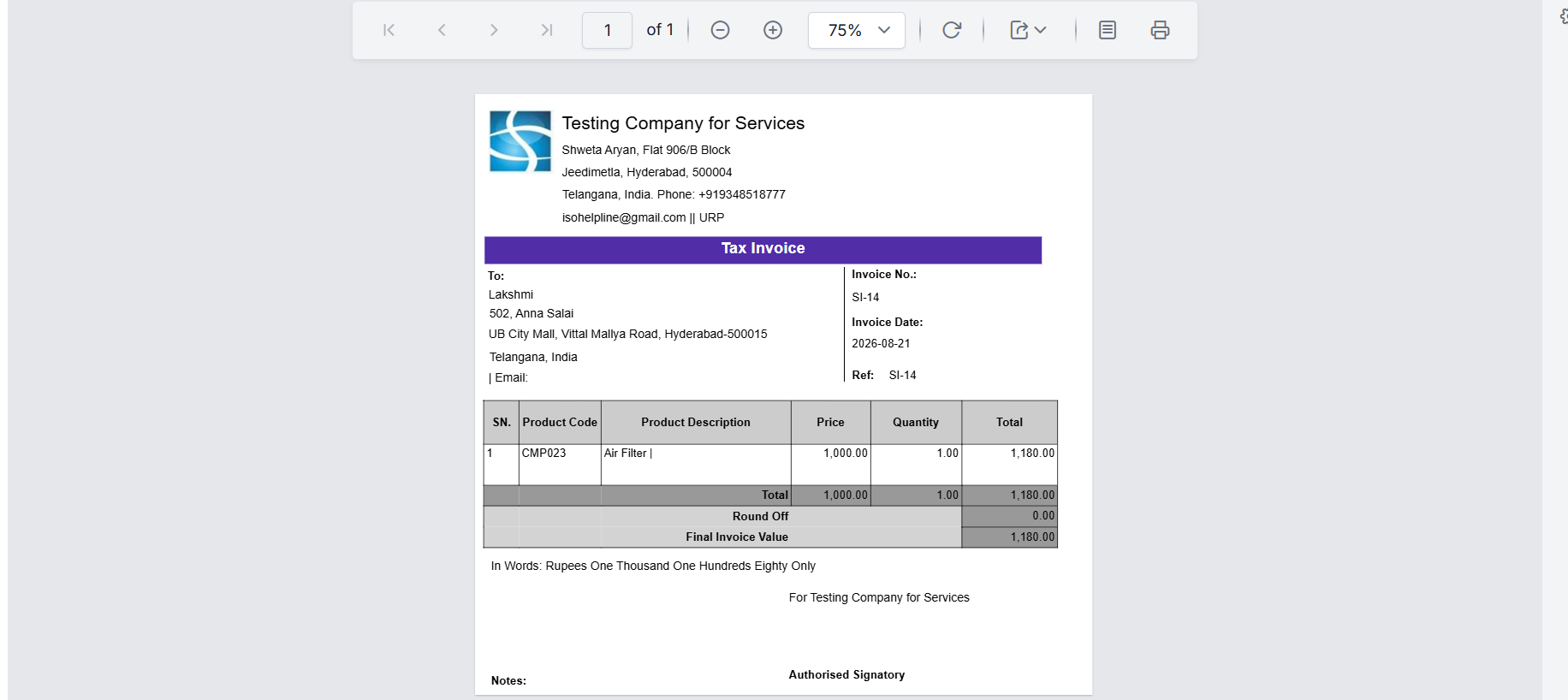
The Records sub-tab centralizes all generated business and financial documents associated with the ticket in one place.
This table includes the following information and actions:
- Date: The creation date of the generated document.
- Voucher Type: The classification of the record (e.g., Sales Invoice (SI)).
- Number: The unique reference or voucher identification number (e.g., SI-14).
- View Icon: Lets you open and preview the full document directly on your screen.
- Print Icon: Opens the document preview toolbar, allowing you to print the record, adjust page layout and zoom controls, or Export the file in various formats (such as PDF, PPT, and TXT) before printing.
Check Point Status
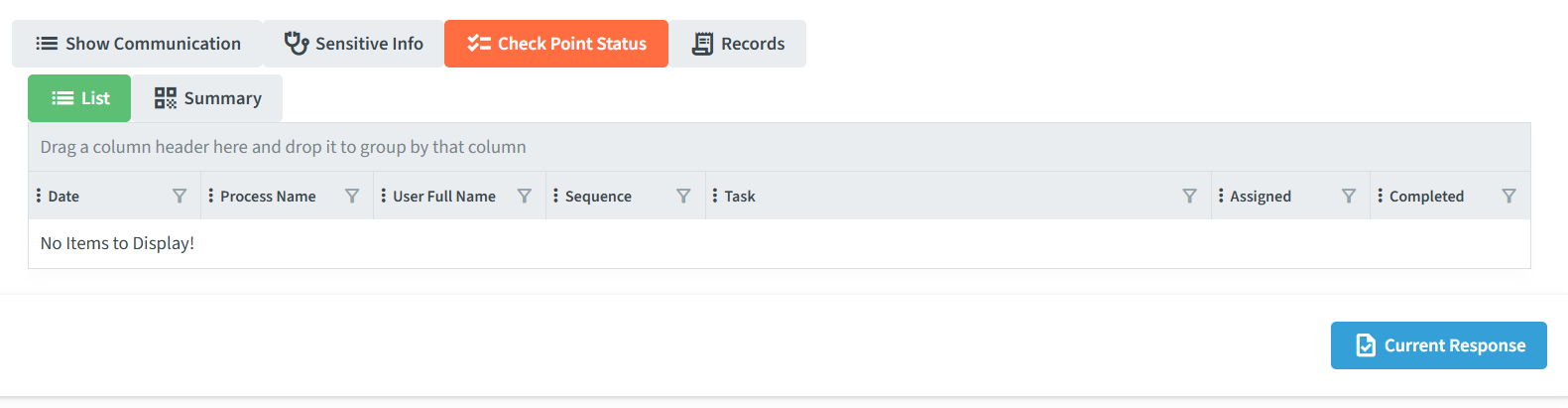
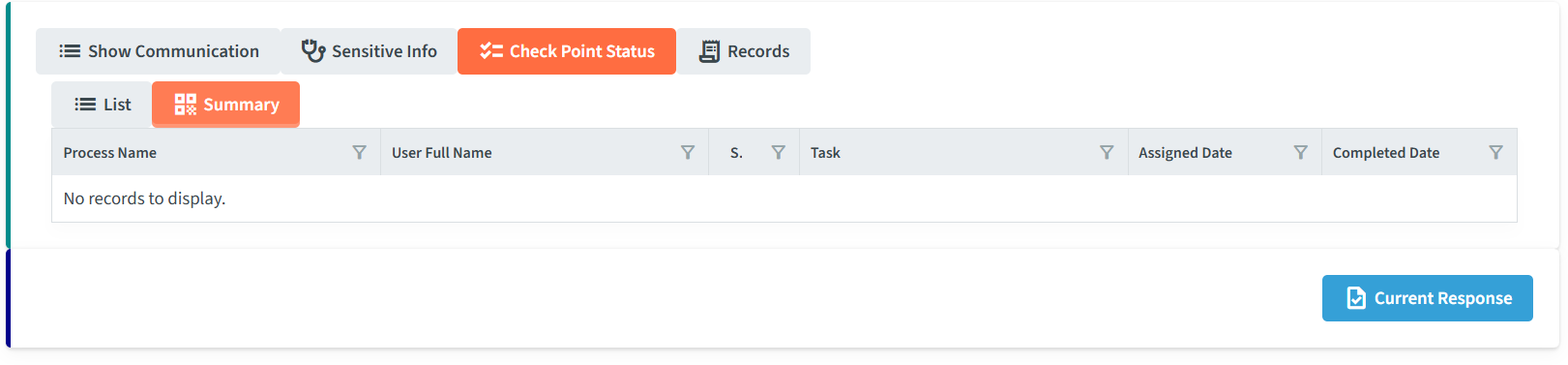
The Check Point Status sub-tab allows you to track and monitor action items required for a specific activity or process. It is split into two views: List and Summary.
- List View: Displays comprehensive operational details for each checkpoint task:
- Date: Timestamp of the checkpoint log.
- Process Name: The specific business process associated with the task.
- User Full Name: The individual responsible for or logging the checkpoint.
- Sequence: The step-by-step order of execution.
- Task: The specific action item or requirement to be performed.
- Assigned & Completed: Shows who the task is assigned to and its current completion status.
- Summary View: Provides a high-level overview of task timelines and completion:
- Process Name & User Full Name: Identifies the stage and responsible user.
- Sequence & Task: Displays the task order and description.
- Assigned Date & Completed Date: Shows exact timestamps for when the checkpoint was assigned and officially finished.
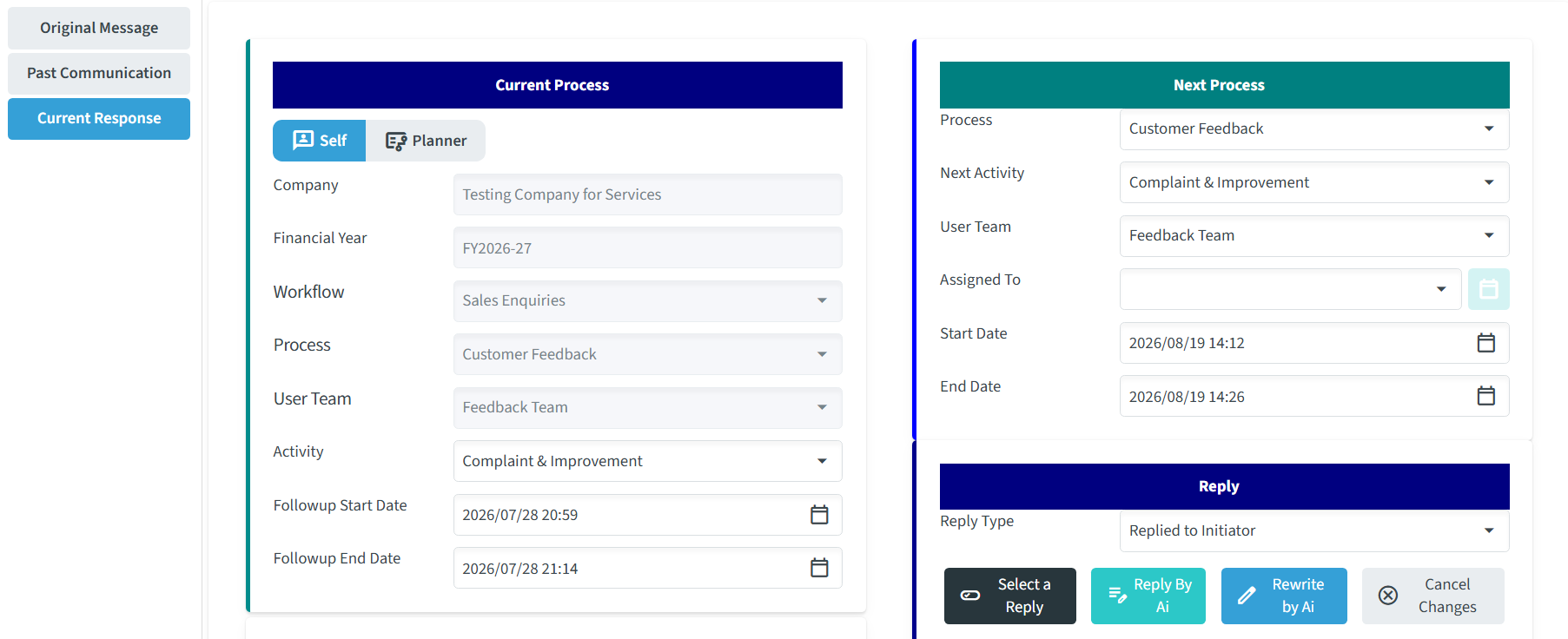
Current Response
Where you can add a reply or close the ticket.
In the Current Response tab, you can manage the ticket’s entire lifecycle.
- Workflow Components:
- Process: Move the ticket to the next stage in the workflow (e.g., from “Sales” to “Installation”). You can also assign it to any independent process if required.
- Activity: Define the specific next action, such as “Get Clarity” or “Site Survey”.
- User Team & Assigned To: Assign the task to a different team or a specific team member to ensure accountability.
- Scheduling and Communication:
- Start/End Date: Set deadlines for the task. You can check an employee’s schedule before assigning a date to ensure they are available.
- Priority: Set the urgency of the task (e.g., Normal, High, or Urgent).
- Reply Type: This critical setting controls message visibility:
- Reply to Customer: The message is visible to the customer. Use this for progress updates or requests for information.
- Internal Process: The message is visible only to your internal team. Use this for internal notes and coordination.
- Closing a Ticket:
- If the issue could not be resolved, choose Closed Fail. You will be prompted to select a Fail Reason (e.g., Price, Late in Response). This data is used for analysis and helps management identify areas for improvement.