Sales Records
Navigation
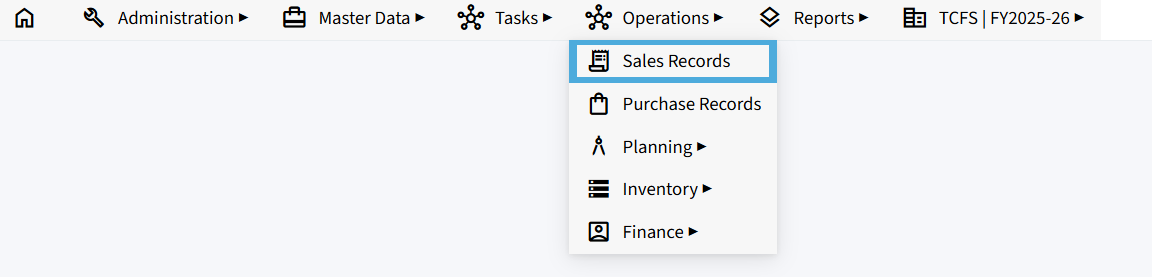
To access the Sales Records module:
- Navigate to the Operations menu from the main navigation bar.
- Select Sales Records.
Selecting a Branch and Voucher Type
After opening Sales Records, select the Branch and Voucher Type you want to work with.
Branch
The Branch identifies the location associated with the sales records you want to view or create. The available branches are configured according to the organization’s requirement.
Voucher Type
Select the required Voucher Type from the dropdown menu. Depending on the organization’s configuration, available voucher types may include Sales Order (SO), Sales Invoice (SI), Quotation, Delivery Challan, and other enabled sales documents.
Once the Branch and Voucher Type are selected, the corresponding records are displayed.
Note: The available branches and voucher types depend on the organization’s configuration.
The Approved Records view is displayed by default when you open the Sales Records page. It shows the approved records for the selected branch, voucher type, and month type.
Sales Records Options
The Sales Records page provides several options for managing and reviewing vouchers:
- Records Pending Approval – Displays records that have been created but are awaiting approval.
- Approved Records – Displays records that have been approved and are available for further use.
- New Record – Opens the form to create a new record for the selected voucher type.
- Month/Year – Select the month and year for which you want to view records.
- Number of Items – Specifies how many records are displayed on the page at a time.
- Excel Import – Allows supported record data to be imported from an Excel file.
- Excel Export – Allows the displayed records to be exported to an Excel file for reporting or further analysis.

Approved Records
The Approved Records section displays sales records that have successfully completed the approval process. After selecting Approved Records, you can review the approved vouchers for the selected Voucher Type and Month/Year.
This view provides the main record table, where you can review individual transactions and access their document details.
Sales Records Table
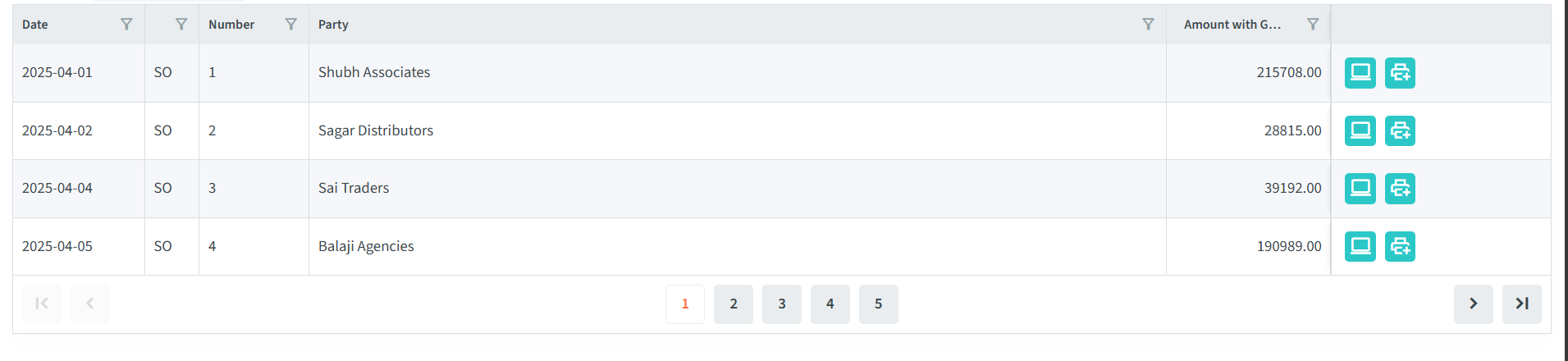
After selecting the voucher type and required month/year, the available records are displayed in a table. Each row represents an individual sales record.
The table contains the following information:
- Date – Displays the date on which the record was created.
- Series – Displays the voucher type or document series associated with the record, such as SO for Sales Order or SI for Sales Invoice.
- Number – Displays the unique number assigned to the voucher.
- Party – Displays the customer, supplier, or other party associated with the record.
- Amount with GST – Displays the total amount of the record, including the applicable GST.
- View – Opens the selected record so you can review its complete details.
- Print – Allows you to generate or print the selected record in its available document format.
Navigating Records
If the selected period contains more records than can be displayed on a single page, use the page numbers or Next/Previous navigation buttons at the bottom of the table to move between pages.

Records Pending Approval
The Record Pending Approval section displays sales records that have been created but have not yet completed the approval process. This view allows authorized users to review the details of each record and approve them before they become part of the Approved Records list.
Records Table
The table displays the following information:
- Date – The date on which the record was created.
- Series – The Voucher or document series associated with the record, such as SO for Sales Order or SI for Sales Invoice.
- Number – The unique number assigned to the voucher.
- Party – The customer, supplier, or other party associated to the voucher.
- Amount with GST – The total amount of the record, including applicable GST.
- View – Opens the selected voucher so that you can review its details and complete the approval process.
Note – Unlike the Approved records tab, the Records Pending Approval table does not provide a print option.
Reviewing and Approving a Record
To approve a pending record:
- Locate the required record in the Records Pending Approval table.
- Click the View icon.
- Review the Voucher details carefully.
- Approve the record using the approval option available in the Voucher.
- Once approved, the record is removed from the Pending approval record and becomes available under Approved Records.
This workflow ensures that records are reviewed and approved before they are treated as approved sales documents within the system.

Pending Status

The Pending Status option is available in the Sales Records interface when Sales Invoice (SI) is selected as the voucher type. It provides a list of Sales Orders (SO) that are pending, allowing users to track the remaining quantities and use the pending orders while creating Sales Invoices.
Navigation
- Go to Operations → Sales Records.
- Select Sales Invoice (SI) from the voucher type dropdown.
- Click Pending Status.
Note: A Sales Order (SO) appears in the Pending Status section only after it has been approved.
Status Filter
The Pending Status screen provides two status options:
- Pending – Displays Sales Orders that still have quantities remaining to be delivered/invoiced.
- Completed – Displays Sales Orders for which the required quantities have been fully delivered.
Close
The Close button is used to mark the selected Sales order as Completed.
- Select the checkbox for the required Sales order/Product entry.
- Click Close.
The entry is removed from the Pending list. It is now available under the Completed Status.


Sales Order Pending Status Table
The main table displays Sales Order and product-level information required to track the quantity ordered and the quantity already delivered.
- Qty Ref Closed – Checkbox used to indicate or manage the quantity reference status for the selected entry.
- Name – Name of the Customer or Party associated with the Sales Order.
- Date – Date on which the Sales Order was created.
- Series – Tells you what type of voucher it is, such as SO for Sales Order.
- Number – Unique Sales Order number.
- Product Code – Code assigned to the Product in the Sales Order.
- Product Name – Name of the Product in the Sales Order.
- Original – Original quantity specified in Sales Order.
- Delivered – Quantity that has already been delivered.
- Balance – Remaining quantity.
