User Profile
The User Profile is a section that contains all essential information and controls related to a specific user in the system. It helps manage and customize the user’s access, identity, and role within the application.
General
General contains all the user personal information. you can edit user details and click Save.

Functional
The Functional tab allows administrators to configure a user’s operational role, team assignments, employment classification, and address sync options.
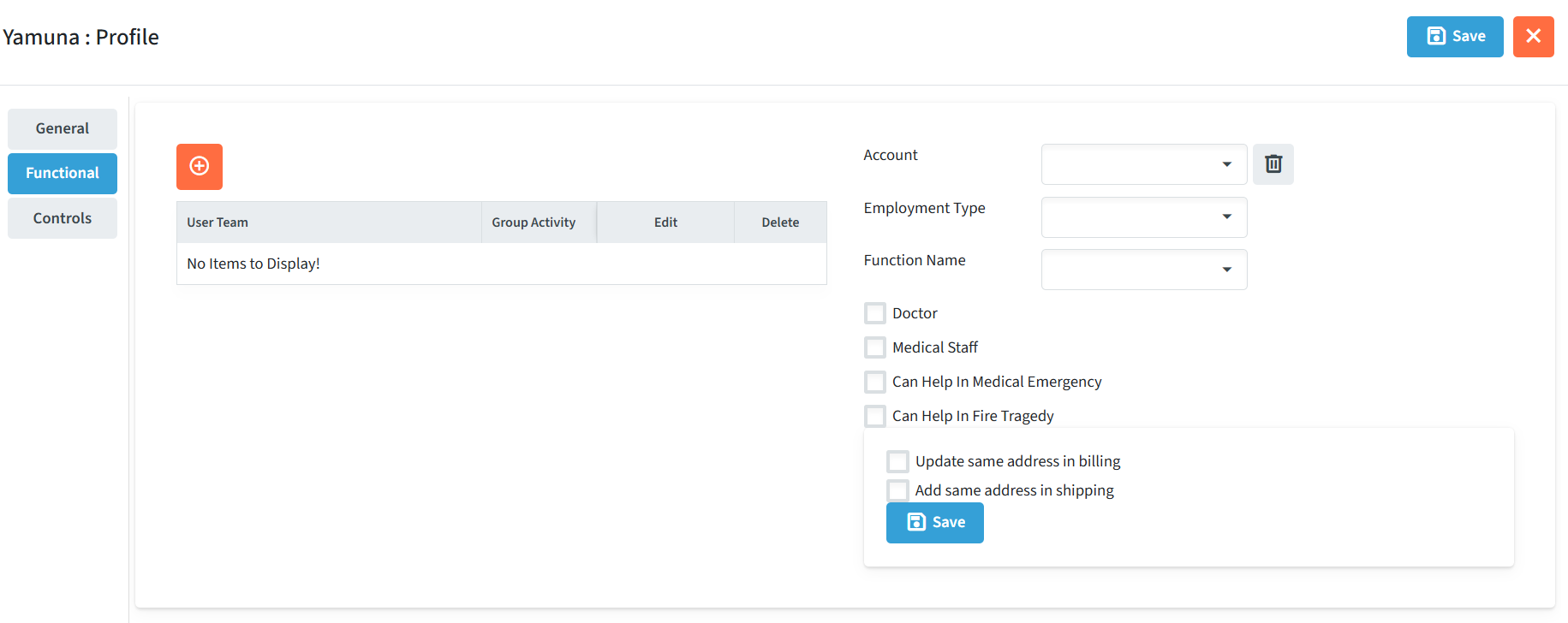
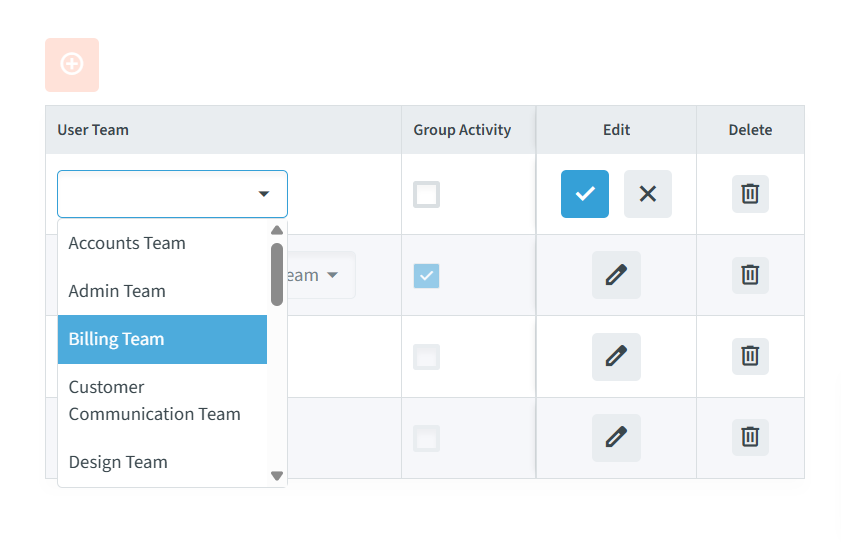
- User Teams: Assign the user to one or multiple functional teams (e.g., Accounts Team, Billing Team, Sales Team, Design Team).
- Click the orange + button to add a new team mapping.
- Select the desired team from the User Team drop-down.
- Check Group Activity if applicable to allow multi-user activity grouping.
- Use the Edit (pencil) or Delete (trash bin) icons to update or remove team assignments.

- Account: Link the user to a specific entity or customer profile from the Account drop-down. This controls data scope so users only view tickets and records associated with that account.

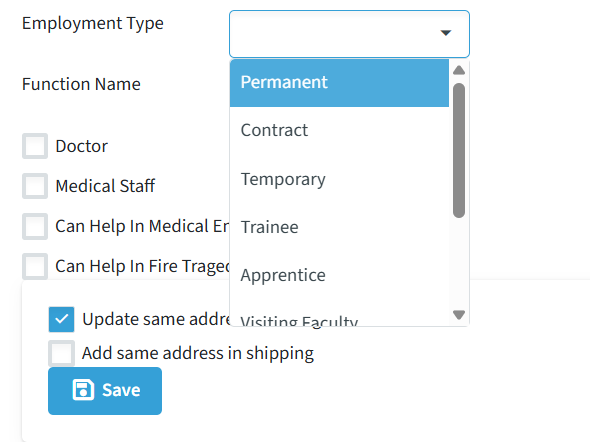
- Employment Type: Classify the user’s contract status using the Employment Type drop-down (e.g., Permanent, Contract, Temporary, Trainee).
- Function Name & Roles: Define the user’s specific job title or functional role in the organization using the Function Name drop-down (e.g., Doctor, Nurse, Technician, Staff, Supervisor, Manager). You can also toggle specialized role capabilities via checkboxes (e.g., Doctor, Medical Staff, Can Help In Medical Emergency, Can Help In Fire Tragedy).

- Address Synchronization: Manage address consistency across billing and shipping records using the quick checkboxes:
- Update same address in billing: Syncs profile address updates directly to the billing address records.
- Add same address in shipping: Applies the same profile address to shipping records automatically.
- Click the inner Save button within the address box to apply address preferences.

(Remember to click the top-right Save button to finalize all Functional profile updates.)
Controls
Blocking/Unblocking a User
- This option allows you to temporarily disable or re-enable a user’s access to the system.
- Blocked users will not be able to log in or perform any actions until unblocked.

Assigning to Teams and Accounts
Once you have registered a user, you are expected to group him or her into one or several teams which are relevant. There are already such teams generated under different Processes. An example will be that in the Marketing process, a team may be named Mkt Team 2. To have an easy to manage structure, allot working meaningful and practical team names according to the work environment.
- Users can be linked to specific Teams (e.g., Sales Team, Support Team) to ensure proper task allocation and reporting.
- They can also be connected to specific Accounts (e.g., Customer Accounts, Supplier Accounts) so that they only view tickets, records, and projects related to those accounts.
Other Fields
- Name: The user’s full name for identification across the system.
- Address: Residential or official address for reference.
- Notes: Any additional details about the user can be saved here for future reference.